



 Solution
 Support Center
 About Us
 Contact
Forgot HP Password: Reset It to Reaccess Content and Settings
 Penny Warren Published on March 13, 2026Windows Password3-min reading
It is better to use the HP laptop with a password. This way, you can protect and content and settings it contains every day. Unauthorized access will be prevented due to the security feature. However, there are some users who accidentally forgot the HP laptop password. If that happens, even you cannot access its content and settings.
How to access it if I forgot my password on my HP laptop? We have got your back! This article offers five easy methods to reset your password when forgotten on an HP laptop. Please scroll below to know the full details about the topic.

In this article:
Part 1: Use Your Microsoft Account Online (For Windows 10/11)
You can reset an HP laptop with your Microsoft account. This account is the suggested account, which allows you to use the free services of Microsoft on your HP laptop. Since you cannot use your HP laptop, you can use a spare device to do this procedure. Also, this method does not delete any data from your HP laptop. All data will remain intact. You also do not need to create a password reset disk to reset the password.
How to unlock an HP laptop forgot password without a disk? Follow the steps below to use your Microsoft account for the process.
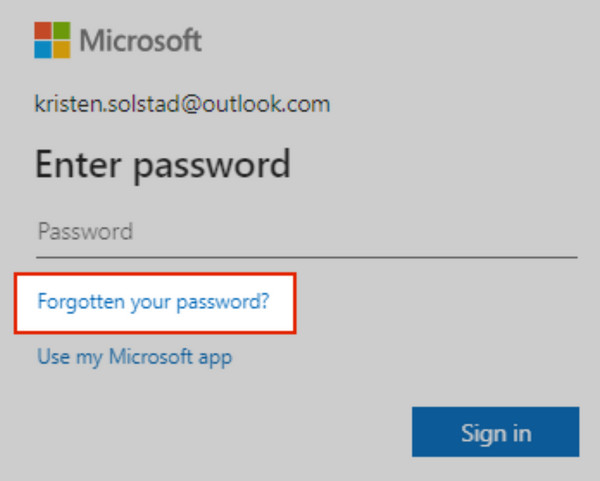
Open the Microsoft Password Reset account. After that, please enter your Microsoft account in the empty boxes. Later, click the Forgot Your Password button under the Password section.
After that, click the Next button on the following screen. Later, enter your email and verify your identity. After the authentication process, please create your new password. You can use the account to unlock your HP laptop afterward.
Part 2: Use a Password Reset Disk (If You Created One)
A password reset disk is a DVD, CD, or USB flash drive that enables you to reset your HP laptop when you forget it. This way, you will not lose your files and reinstall your Windows version. However, the password reset disk must be created before you forget the password. Also, it only works for the same user account. Additionally, it will only work for the same computer. Your data will remain intact after resetting the password using the disk. Use the steps below to reset an HP laptop with a password reset disk if you created one.
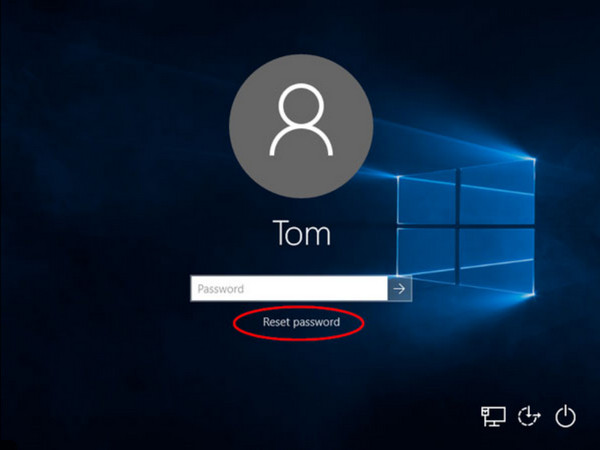
Turn on your HP laptop. After that, please insert the disk into your HP laptop. Then, ensure that you are on the login screen. Please click the Reset Password button at the bottom of the user account.
The Password Reset Wizard screen will open. Click the Next button. Please select the disk and enter a new password. Confirm the password and select the Next button. Finally, click the Finish button.
Part 3: Reset Via Another Admin Account
The user accounts on your HP laptop can be multiple. You can use another administrator account to reset your forgotten password. However, another account on the HP laptop must have administrator privileges. If there is not, you cannot proceed with the process. Please use the steps below to unlock the HP laptop without a password.
Open the HP laptop. After that, sign in using the different account that has the administrator privilege. After that, press the Windows + R keys at the same time. Please type the Control Panel word. Press the Enter key to view the program.
Click the User Accounts button and select the Manage Other Account button from the screen. Select the account you forgot the user password. Later, click the Change the Password button. Later, enter a new password.
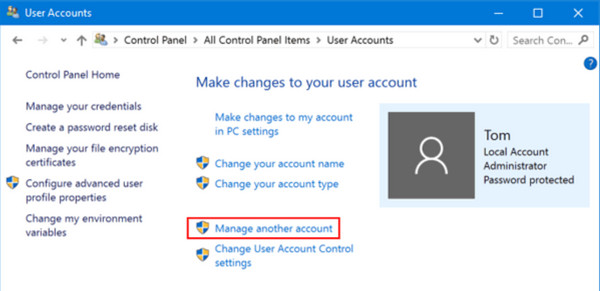
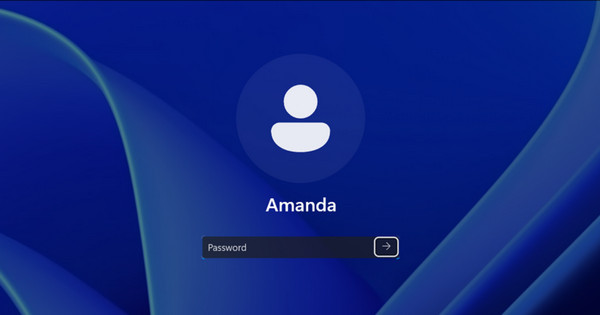
Click the Change Password button. Then, log out of the account. Finally, please enter the new password for the account for which you forgot the password. Click the Arrow button or press the Enter key to sign in.
Part 4: Windows Password Reset Tool
On the other hand, other HP laptop users did not have the chance to create a password reset disk before they accidentally forgot their password. So, use imyPass Windows Password Reset. It can help you create a USB and CD/DVD boot drive to reset your password in a few seconds or minutes. The tool is 100% working.
Also, this third-party tool can remove the admin, user, and Microsoft account on different Windows versions. It includes Windows 7/8/8.1/10/11. You can use it for different reasons. It includes forgotten admin password, second-hand laptop, forgotten Windows password, etc. Please refer to the steps below to know how to use the tool.
Open your computer. After that, please search for the main website of imyPass Windows Password Reset. Then, set up, install, and open the tool on your computer to start the resetting process.
Please click the Burn CD/DVD or Burn USB button on the right. It depends on your preferred disk. Later, restart your computer and press the F12 key. The Boot screen will appear. Save and exit it afterward to proceed. The tool will be prompted again.
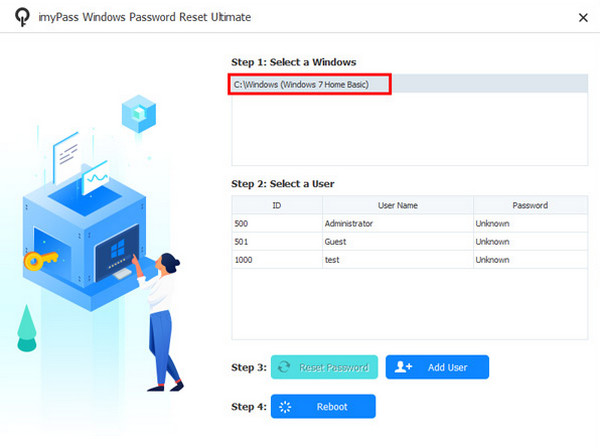
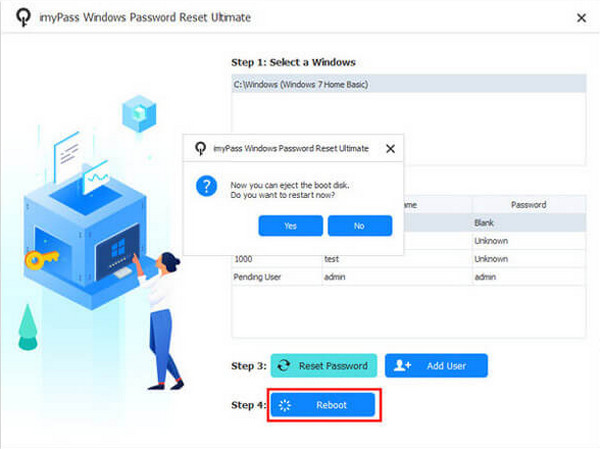
Please select the Windows at the top of the main interface. Then, select the user account at the bottom. Click the Reset Password button. A small window will be encountered. Click the Yes button to confirm. Click the Reboot button to start your laptop.
Part 5: Reset This PC (Last Resort - May Lose Files)
If you do not have the choice, you can use the Reset This PC feature as your last resort. However, you may lose all of your files if you do this process. The procedure is a bit demanding. Do not worry. We will help you perform it easily with the detailed steps below.
Turn on your HP laptop. After that, click the Power button on the screen. Then, press and hold the Shift button. Later, click the Restart button. After that, you will be prompted to the Advanced Startup menu.
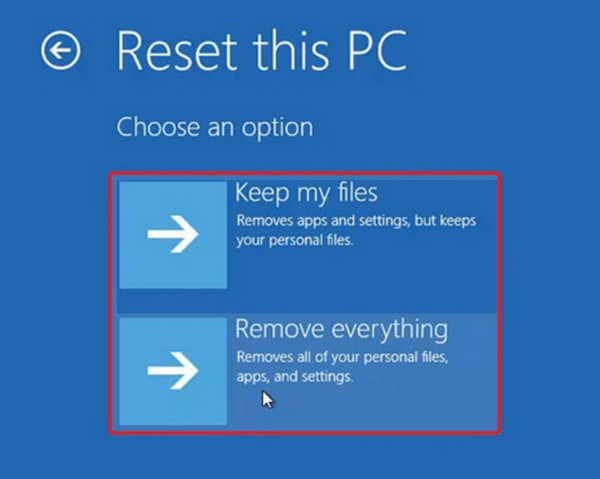
Please click the Troubleshoot button on the screen. Later, click the Reset This PC button. Click the Keep My Files button. Perform the on-screen instructions to complete the procedure.
Conclusion
When you accidentally forget a HP laptop password, you cannot access its data and settings. This article has shown you the five quick ways to reset it. imyPass Windows Password Reset is here to help you when the password is unknown. Please download the tool if you want to know more about its features.
Penny focuses on GPS troubleshooting and Windows optimization. She formerly worked as a technical support engineer, helping clients solve location-based and system issues efficiently. Backed by IT support experience, she provides practical solutions that really work. In her free time, she likes hiking and geocaching, testing GPS tech in the real world.
Hot Solutions
-
Windows Password
-
Windows Tips
-
Fix Windows
-
Password Tips


